
How to Build a Calendar App - A Comprehensive Guide
Published on
This article is for you if you are a developer who needs to integrate a calendar into an application, or a founder who is thinking about building a calendar app or a product with calendar integrations.
We will go through how to build a calendar app, make each decision step by step, pick the right technologies, and look at the main challenges and best practices.
What is the scope of this article?
The goal of this article is to help you build a complete calendar app, or to integrate calendar providers into an existing application, so that your users can connect their calendars and manage them through your product.
The article is also useful if you want to connect to calendar providers without showing a calendar interface at all. Examples are a tasks app, a dating app, or a feature that simply inserts an event into a user's calendar.
Feel free to take individual parts of this article and reuse them in your own codebase, including the technology choices, the unified API approach, or parts of the code.
The overview of the architecture & tech stack
We chose the web as the platform for this example, because it is the fastest to get up and running and there is plenty of community support for calendar libraries.
The programming language is TypeScript, and the web framework is Next.js.
Here is an overview of the tech stack we will use:
- Frontend : Next.js (app router, TypeScript)
- Backend : Next.js API routes + tRPC.
- Database : PostgreSQL (using
Prismaas ORM) - Calendar APIs : Apiroc Unified Calendar API
- Hosting : Provider agnostic, you can host it on Vercel or wherever you are comfortable.
- Authentication : OAuth2 (Google, Microsoft) through
better-auth
Below is the architecture diagram that shows how the pieces of the tech stack fit together:
Definitions:
-
Client (1) : The end user device. The illustration shows a mobile device, but it could also be a desktop or a laptop (any device with a web browser such as Google Chrome). The client renders the Next.js frontend, handles user interactions, and talks to the backend over secure HTTPS requests.
-
Web Server (2) : The Web Server hosts and serves the user interface, a Next.js (App Router) web application. It delivers optimized HTML, CSS, and JavaScript to the client and provides server-side rendering (SSR) and incremental static regeneration (ISR) for fast performance and SEO benefits.
-
Nextjs API (3) : The Next.js API is the backend layer, implemented with API routes and tRPC inside the same Next.js application. It is the central hub that connects the frontend, the database, and external integrations like the Apiroc Unified Calendar API. Unlike traditional REST endpoints, tRPC gives us type-safe, end-to-end communication between frontend and backend without a separate API schema. The client can call backend procedures directly, with full TypeScript type inference. This speeds up development and reduces runtime errors.
-
PostgreSQL(4) : The PostgreSQL database stores all persistent application data, including users, sessions, connected calendar accounts, etc. It is the system of record for all user-related data and synchronization state. With Prisma as the ORM layer, the schema maps cleanly to the database, which makes migrations and queries easy to manage.
-
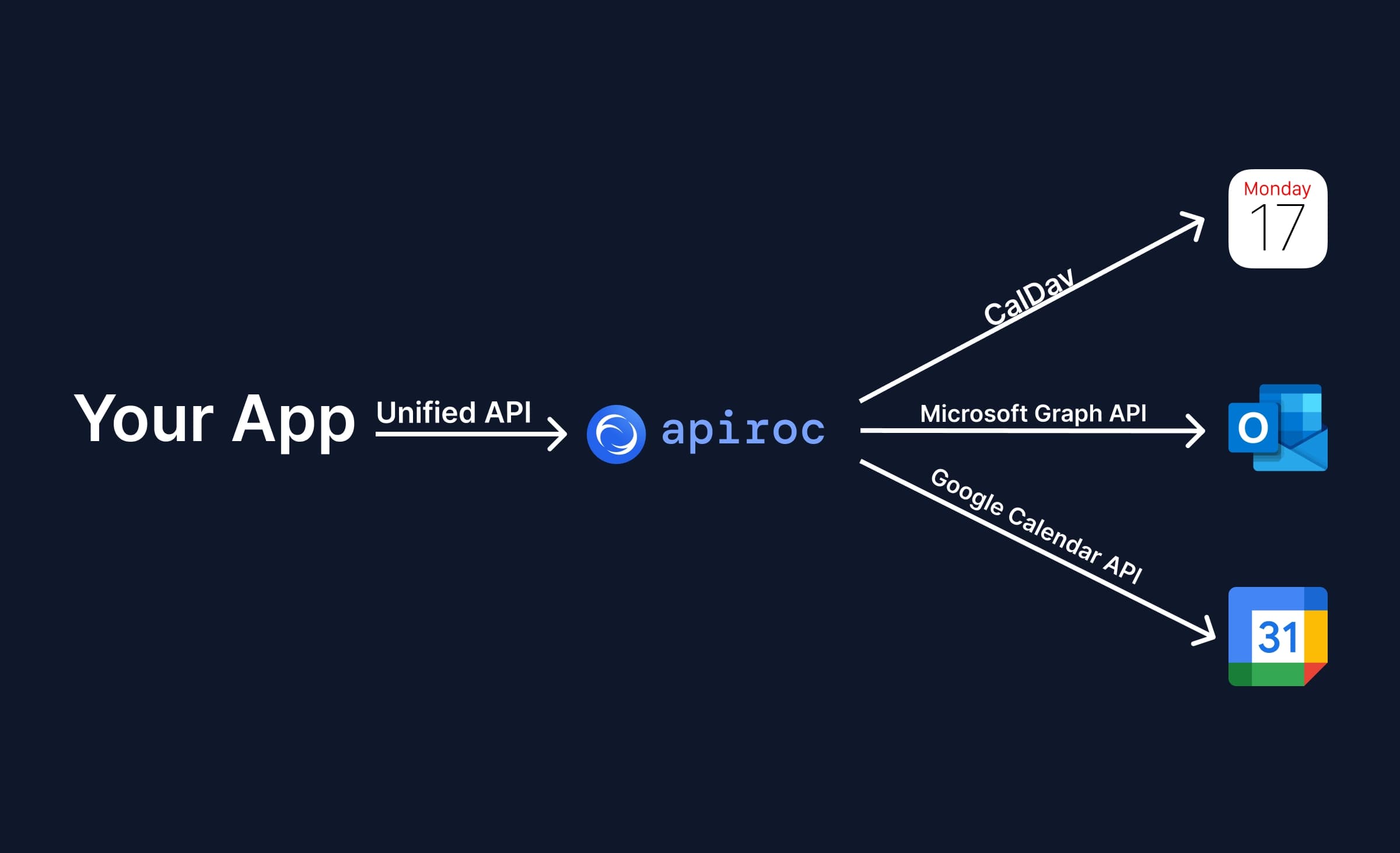
Apiroc Unified Calendar API (5) : Apiroc is the API we use to integrate with all calendar providers through one standardized interface. It means we do not have to write a separate implementation per provider, deal with different data formats, maintain several integrations, or keep up with provider API changes. Our API calls Apiroc with the API key and the calendars we want to work with (CRUD events, calendars, and more), regardless of the provider. Apiroc then talks to the calendar providers and returns the response in the same standardized format for every provider.
Note that the Web Server (2) and the Next.js API (3) can run on the same server (using Vercel, Docker, etc). They are split in the diagram only to make it clear that there is a UI server and an API server, even though both live in the same Next.js codebase and are usually hosted together.
Designing the data model
Now that the architecture and tech stack are clear, it is time to define the data model. We use Prisma as our ORM.
This Prisma schema defines the data structure for a basic calendar application that supports user authentication, calendar account connections (Google, Microsoft), and event synchronization through a unified API.
The most important models are:
1. User
Represents an end user of the app. Each user can have multiple sessions, connected accounts (OAuth), and calendar accounts. Fields like email, name, and onboardingCompletedAt help track profile and onboarding status.
2. CalendarAccount
Represents a linked external calendar account (for example a Google or Microsoft account). It stores the provider, email, and status (active or expired). Each CalendarAccount belongs to one User and can contain multiple Calendar entries.
3. Calendar
Represents an individual calendar (like "Work," "Personal," or "Family") inside a linked account. It includes display fields such as name, color, timezone, and flags like isPrimary or isReadOnly. Each calendar is linked to both a User and to the CalendarAccount it comes from.
4. Account
Handles OAuth provider data (Google or Microsoft). It stores access and refresh tokens, token expiry times, and scope information, which are used for authentication and calendar synchronization.
5. Session
Tracks active login sessions for users. It contains fields like token, expiresAt, ipAddress, and userAgent to manage and secure active sessions.
6. Verification
Used for one-time verifications, such as email login magic links or passwordless authentication codes. It stores temporary identifiers and expiration times.
7. Enums
CalendarAccountProvider: Defines supported providers (GOOGLE,MICROSOFT).CalendarAccountStatus: Tracks whether a connected account isACTIVEorEXPIRED.
The database ER diagram:

Open the schema.prisma file in the example repository to see the full database schema, including types and relations.
Building the Backend
As mentioned, we use Next.js API routes to build the API. It is very handy to have the API and the UI in the same codebase and on the same server, because you can run both at the same time.
Building the authentication
We use better-auth as our authentication framework. Better Auth makes authentication easy and painless. Follow the Better Auth guide on how to integrate Better Auth with Next.js, as the steps are almost identical. You can also explore the auth file in the example repository to learn more.
Setting up the Apiroc Unified Calendar API to communicate with all calendar providers
The biggest pain point when building a calendar app, or when adding calendars to an existing product, is dealing with provider-specific APIs. This costs a lot of time: you have to learn each API separately and handle different data structures, requests, and responses. On top of that, you need to build a separate integration for every provider and maintain all of them after development is finished.
A good solution to this problem is a Unified Calendar API that lets us integrate with all calendar providers through one standardized API. In this example, we use the Apiroc Unified Calendar API.
To get started with Apiroc, follow these steps:
- First, sign up for Apiroc and create a free account.
- After signing up, enable the calendar providers you want to integrate. We recommend enabling Google Calendar and Outlook, so you can see the benefit of a unified calendar API product. You do not need to create your own Google or Microsoft client for sandboxing and development. You can use the Apiroc Google and Microsoft clients to connect Google Calendar or Outlook accounts to your application.
- Create an API key and store it in the env
APIROC_API_KEY
Building the Apiroc API Client
After setting up Apiroc and getting the API key, it is time to build the API client that talks to the Apiroc Unified Calendar API:
import { env } from "@/env";
import type {
  EndUserAccount,
  PaginatedResponse,
  UnifiedCalendar,
  UnifiedEvent as UniversalEvent,
} from "@/server/lib/apiroc/types";
import ky from "ky";

export const apirocApi = ky.create({
  prefixUrl: env.NEXT_PUBLIC_APIROC_URL,
  headers: {
    "x-api-key": env.APIROC_API_KEY,
  },
});

export async function getEndUserAccountById(id: string) {
  const response = await apirocApi.get<EndUserAccount>(
    `endUserAccounts/${id}`,
  );
  return response.json();
}

export async function getCalendarsForEndUserAccount(endUserAccountId: string) {
  const response = await apirocApi.get<
    PaginatedResponse<UnifiedCalendar>
  >(`calendars/${endUserAccountId}`);
  return response.json();
}

interface GetCalendarEventsParams {
  pageToken?: string;
  pageSize?: number;
  syncToken?: string;
  startDateTime?: string;
  endDateTime?: string;
  timeZone?: string;
  expandRecurrences?: boolean;
}

export async function getCalendarEvents(
  endUserAccountId: string,
  calendarId: string,
  params: GetCalendarEventsParams = {},
) {
  const queryParams = new URLSearchParams(params as Record<string, string>);

  const response = await apirocApi.get<
    PaginatedResponse<UniversalEvent>
  >(`events/${endUserAccountId}/${calendarId}?${queryParams}`);
  return response.json();
}

export async function getCalendarEvent(
  endUserAccountId: string,
  calendarId: string,
  eventId: string,
) {
  const response = await apirocApi.get<UniversalEvent>(
    `events/${endUserAccountId}/${calendarId}/${eventId}`,
  );
  return response.json();
}

export async function createCalendarEvent(
  endUserAccountId: string,
  calendarId: string,
  event: Partial<UniversalEvent>,
) {
  const response = await apirocApi.post<UniversalEvent>(
    `events/${endUserAccountId}/${calendarId}`,
    {json: event},
  );
  return response.json();
}

export async function editCalendarEvent(
  endUserAccountId: string,
  calendarId: string,
  eventId: string,
  event: Partial<UniversalEvent>,
) {
  const response = await apirocApi.put<UniversalEvent>(
    `events/${endUserAccountId}/${calendarId}/${eventId}`,
    {json: event},
  );
  return response.json();
}

export async function deleteCalendarEvent(
  endUserAccountId: string,
  calendarId: string,
  eventId: string,
) {
  await apirocApi.delete(
    `events/${endUserAccountId}/${calendarId}/${eventId}`,
  );
}
You do not need to define the client types yourself. Install the official Node.js SDK (@apiroc/unified-calendar-api-node-sdk) and import the types for end user accounts, calendars and events directly from it. The SDK also gives you a ready-made client, so the functions above can be even shorter.
The sequence diagram below shows how the example calendar app interacts with the Apiroc Unified Calendar API to integrate with all calendar providers.
Creating the API routes
With the Apiroc API client in place, we can create the API routes for managing calendar accounts and calendar events. We do not need to create session APIs ourselves, because Better Auth takes care of that.
The API contains route definitions for:
- Calendar accounts : Route that exposes HTTP methods to list all calendar accounts and delete a calendar account by ID.
- Calendar Events : Route that exposes HTTP methods to CRUD calendar events.
- Calendars : Route that exposes HTTP methods to update calendars.
A route definition using tRPC looks like this:
export const calendarEventsRouter = createTRPCRouter({
  getCalendarEvent: publicProcedure
    .input(
      z.object({
        endUserAccountId: z.string(),
        calendarId: z.string(),
        eventId: z.string(),
      }),
    )
    .query(async ({ ctx, input }) => {
      return await getCalendarEvent(
        input.endUserAccountId,
        input.calendarId,
        input.eventId,
      );
    }),
});
The getCalendarEvent method comes from the Apiroc API client we built above.
Open the API routes folder in the example repository to see the contents of each API route. Pasting all of them here would be quite repetitive.
Building the Frontend
The frontend is built with Next.js + TypeScript. When you build a calendar app, the most important component is, you guessed it, the calendar.
Based on our experience, the best calendar UI libraries for Next.js and React are:
For this example, we chose react-big-calendar because it is easy to use with Next.js. Keep in mind that we would recommend fullcalendar for production applications, because it is more customizable and has broader community support.
Fullcalendar is also available for other frameworks like Svelte, Vue.js, etc.
react-big-calendar usage:
      <Calendar
        culture="en-US"
        localizer={localizer}
        events={events}
        defaultView="week"
        eventPropGetter={eventPropGetter}
        components={components}
        onSelectSlot={(slotInfo) => {
          setCreateEventStart(slotInfo.start);
          setCreateEventEnd(slotInfo.end);
          setCreateEventOpen(true);
        }}
        onSelectEvent={(event) => {
          setSelectedEvent(event);
        }}
        selectable
        onRangeChange={(range) => {
          // Week view: range is array of dates
          if (Array.isArray(range) && range.length >= 2) {
            setDateRange([range[0]!, range[range.length - 1]!]);
            return;
          }
          // Month view: range is object with start/end
          if (
            range &&
            typeof range === "object" &&
            "start" in range &&
            "end" in range
          ) {
            setDateRange([range.start, range.end]);
            return;
          }
          // Day view: range is a single Date
          if (range instanceof Date) {
            setDateRange([range, range]);
            return;
          }
        }}
      />
To see the full implementation, open the src/app/(protected)/(calendar) path in the GitHub repository. The main component is the events-calendar.tsx page. You will also find components for editing events (including recurring events), deleting events, and creating events.
This is how the calendar looks:

The user can click on a cell and create an event:

When the user clicks on an existing event, they can delete it or edit it.

When the event is recurring, the user can choose to edit only the selected instance or the whole series.

This is how the edit event UI looks:

The UI could use some polish, but the goal was not a perfect calendar app. The goal was a functional calendar app with a working calendar integration. You can take care of the styles and make them match your brand.
Common Challenges and Best Practices
Building a calendar app or adding calendar features is not always easy. Even when the main functionality looks simple, there are many small details that can cause issues later. Below are some common challenges you may run into, and a few best practices to handle them.
1. Time Zones
Challenge:
Events may show up at the wrong time when users are in different time zones.
Best Practice:
- Always save times in UTC in your database. Calendar events are the exception, because we do not recommend storing calendar events in your database at all. When you fetch events through the calendar provider API, you also receive the event time zone from the API.
- Convert to the user's local time only when displaying on the frontend.
- Use a library like date-fns-tz or luxon to handle time conversions. In this example, we use
date-fnsanddate-fns-tz.
2. Recurring Events
Challenge:
Handling events that repeat (daily, weekly, monthly) can be complex, especially when users want to edit or delete a single instance.
Best Practice:
- Let the user choose whether to update one event or the whole series. Google Calendar, Outlook, and many other calendar clients follow this practice. We followed it in our example app as well.
3. OAuth Token Expiration
Challenge:
Users may lose the connection to their calendars if tokens expire or are revoked.
Best Practice:
- Store refresh tokens securely so you can get new access tokens automatically.
- Handle token errors gracefully and ask users to reconnect their accounts if needed.
4. Keeping Data in Sync
Challenge:
Calendar data becomes outdated if you only fetch it once.
Best Practice:
- Use webhooks from the Apiroc Unified Calendar API to get notified when events change in Google and Microsoft calendars.
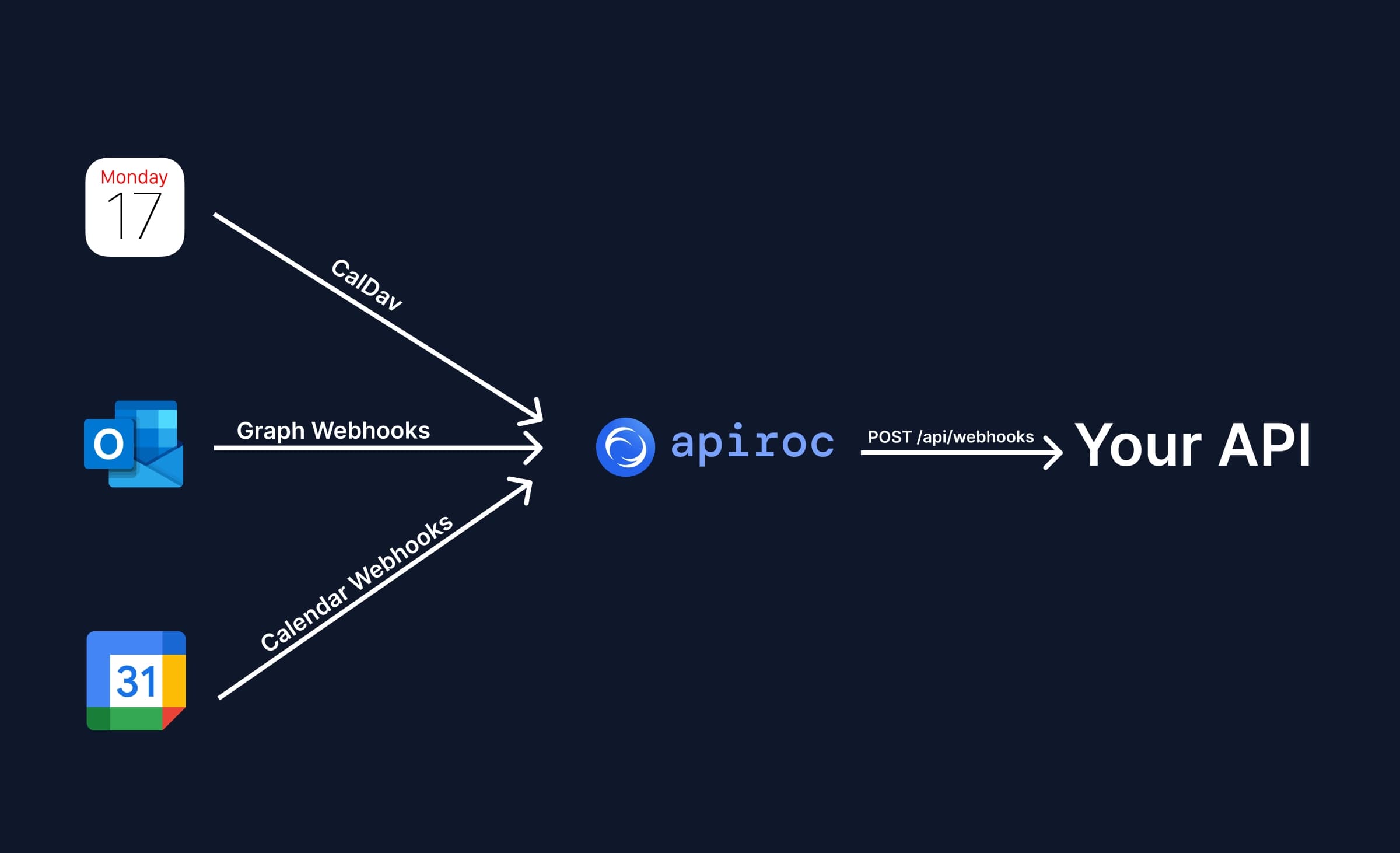
- We recommend fetching events from the calendar providers when the user interacts with the calendar app. Do not store events in your database, because keeping them in sync with all calendar providers is a hard problem. Storing events locally also brings little benefit, since you can fetch calendar events from all providers through Apiroc whenever you need them.
5. Handling API Errors
Challenge:
External APIs (Google, Outlook, iCloud) can return errors, rate limits, or temporary failures. Best Practice:
- Add retry logic for temporary errors (using timeouts is a viable option).
- Respect API rate limits and back off when needed. Note that Apiroc has rate limits, and so do the calendar providers like Google Calendar and Outlook Calendar.
- Log all failed requests for easier debugging.
6. Large Calendars
Challenge:
Some users have hundreds or thousands of events, which can slow down the app. Best Practice:
- Load events in pages (use pagination). All major calendar providers support pagination. If you use Apiroc, all results are paginated, so you will not run into this problem.
- Only fetch events for the visible date range (for example, this week or month). As a rule, fetch only as much data as you need. A calendar app has a day view, week view, month view, and year view, so fetch events according to the visible time frame.
7. User Privacy and Security
Challenge:
Calendar data often includes private information.
Best Practice:
- Do not store calendar events in your database. Storing the access token and refresh token should be enough.
- Encrypt tokens and sensitive fields in your database. We also recommend encrypting your database at rest. Services like AWS RDS offer data encryption out of the box.
- Allow users to disconnect their calendar accounts at any time. This is very important. If users cannot disconnect or delete their calendars in your app, they will revoke access directly from their Google account settings.
FAQ
1. Can I use a different backend instead of Next.js API routes?
Yes. This example uses Next.js API routes with tRPC, but you can use any backend framework like Nest.js, Express, or Django.
The key part is that your backend must communicate with the Apiroc Unified Calendar API over HTTPS. The database structure and API logic stay mostly the same.
2. Do I need to create my own Google or Microsoft developer apps?
No, you can use the Apiroc Google and Microsoft clients during development.
When your app goes to production, you bring your own OAuth2 credentials, which gives you full control and branding for your users.
3. Can I use a different database instead of PostgreSQL?
Yes. Prisma supports many databases such as MySQL, SQLite, and MongoDB.
We chose PostgreSQL because it is reliable, scalable, and easy to set up for production. You can pick any other database and ORM, depending on your tech stack.
4. Is the Apiroc Unified Calendar API free to use?
You can start for free by creating an Apiroc account. No credit card is needed.
The free plan includes up to 10 End User Accounts and is great for testing and small projects. For production use, you can upgrade to the Pro plan ($25/month, 50 End User Accounts included, then $0.50 per additional End User Account per month).
5. What if a user disconnects their calendar?
When a user disconnects, the app should remove the corresponding CalendarAccount and Calendars from your database.
You can keep local data for analytics if needed, but make sure you no longer sync or access disconnected calendars.
7. Can I add notifications or reminders?
Yes. You can build reminders in your app or use the native notification system of the connected calendar (Google, Outlook, etc.).
8. What if the API rate limits my requests?
Apiroc has built-in rate limits for stability (20 requests per second for sandbox apps and 300 requests per second for production apps). If you reach the limit, back off and retry after a short delay. The calendar providers also have their own application-level rate limits. These limits vary, and both Google and Microsoft let you request a higher limit if necessary.
9. Is it possible to sync events in both directions?
Yes. Apiroc supports reading and writing events, so you can both read from and write to connected calendars.
You receive webhook notifications when changes happen on the provider side for Google and Microsoft calendars. Webhooks for Apple iCloud calendars are planned but not available yet.
10. How can I deploy this project?
You can deploy the app easily to Vercel.
Make sure to set your environment variables (DATABASE_URL, APIROC_API_KEY, OAuth credentials, etc.) in your project settings.
You can also containerize it with Docker if you prefer more control.